When it takes 1GB to run a relatively lean WordPress website in 2020 I see the appeal of static site generators. These are from my $10 a month Digital Ocean server for this website.
A few years back we could comfortably run a basic blog on a server with a mere 512 MB of RAM.
Registering a sidebar gives our theme an area where dynamic content can be added by Widgets and managed by the site owner using a drag an drop interface. This can include menus, custom HTML, Images and additional features introduced by Plugins.
In this post we’ll register a sidebar, that will then be assigned dynamic widgets and displayed on our site’s footer.
functions.php
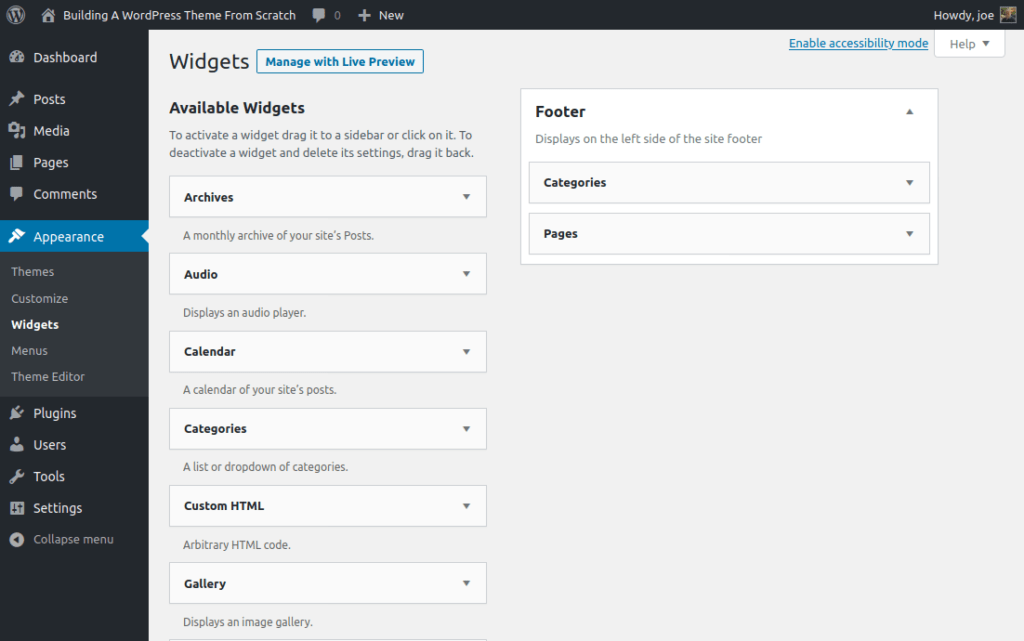
Registering a sidebar adds the Widgets option to our Appearance menu which didn’t appear previously. By registering a sidebar we also enable this feature in the WordPress dashboard.
WordPress Dashboard > Appearance > WidgetsRegister a Sidebar in functions.php
// Register a Sidebar
        register_sidebar(
                array(
                        'id'            => 'footer',
                        'name'          => __( 'Footer', 'textdomain' ),
                        'description'   => __( 'Displays in the footer on the left side', 'textdomain'),
                )
        );
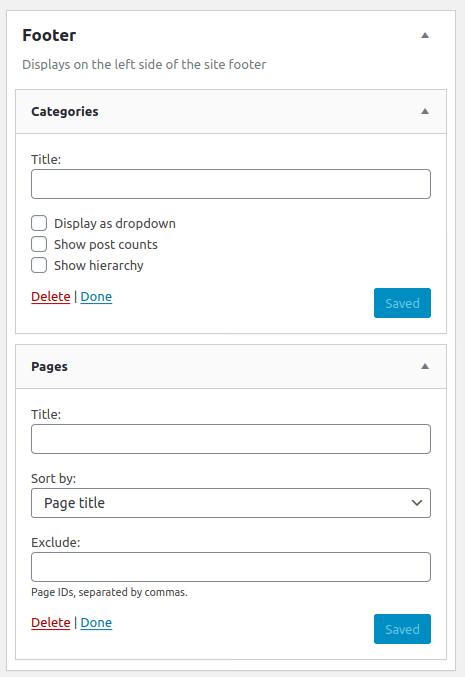
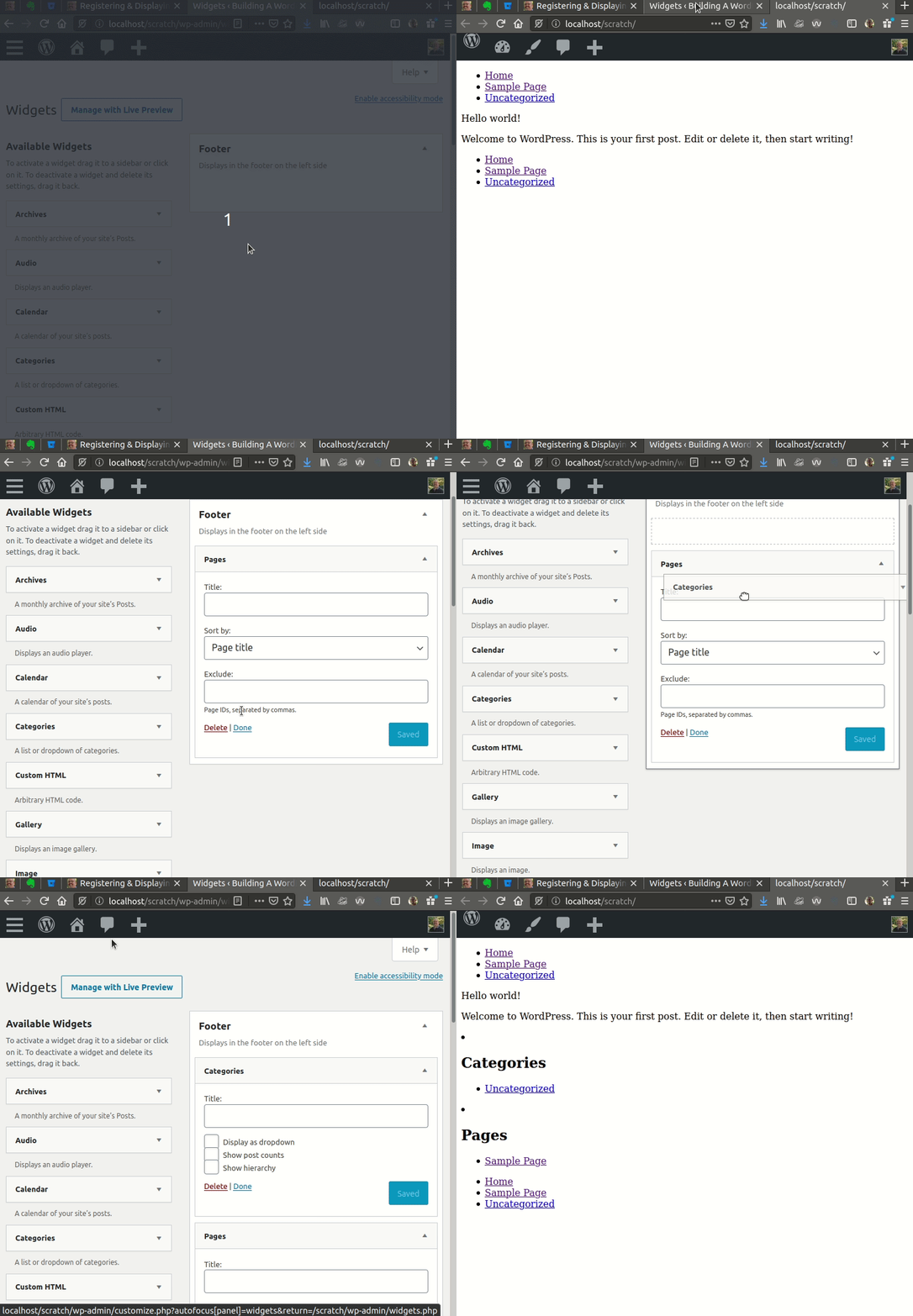
Once we’ve registered the sidebar we can assign content to our Footer widget.
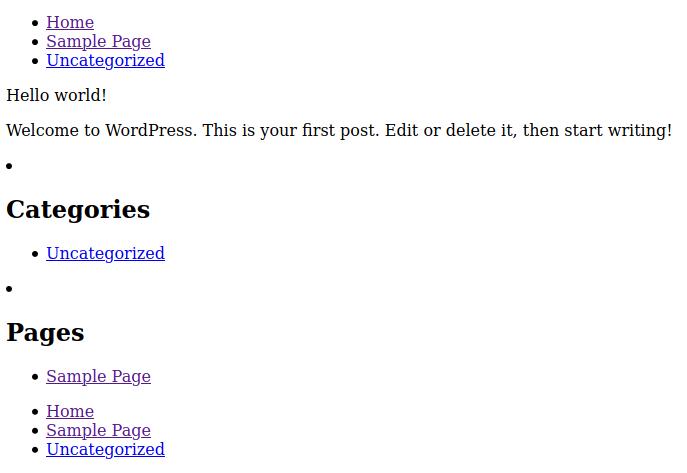
Assigning Categories and Pages to the Footer widget
footer.php
Next we’ll want to display that sidebar so we’ll use the conditional tagis_active_sidebar() to check if any widgets have been assigned. If that check passes WordPress will display the widgets. By running a check such as this we prevent WordPress from adding empty HTMLtags to the page. This also helps us with accessibility later.
Adding or Registering menus to a WordPress website has frequently been a challenge which is why I believe it deserves its own post as we learn about register_nav_menus() then adding those Navigation Menus to our theme.
At first glance the process appears simple, add a function to functions.php to “register” the menus.
If you’d like to glance the complete files visit this snippet.
Where registering menus gets gets tricky is if there is a mismatch between the registration and the template file that hooks it into the page. If wp_nav_menu() doesn’t find the desired menu WordPress displays a fallback… In this case the only page on my website Sample Page. Since this isn’t expressed as an error we’re not really sure what’s wrong here. Only that its not the expected result.
These aren’t the the menus you are looking for
However, if things work outour assigned menu will display properly.
Assigning our menu to Header and Footer Display locations
The assigned menus we’re expecting
Template Tags
Until thiss point our theme hasn’t generated any html beyond a paragraph tag in the Welcome post.
However, wp_nav_menu() is one of many Template Tags that WordPress provides by to help designers and developers customize our website.
Not just unordered lists and list items are inserted but custom classes as well.
In the image above which inspects the menus list links you’ll note a class of current_page_item which could be used to differentiate the current page as it appears in the menu. All without custom JavaScript. A feature that will be handy later when we plan our our design and accessibility features.